
Open your truck
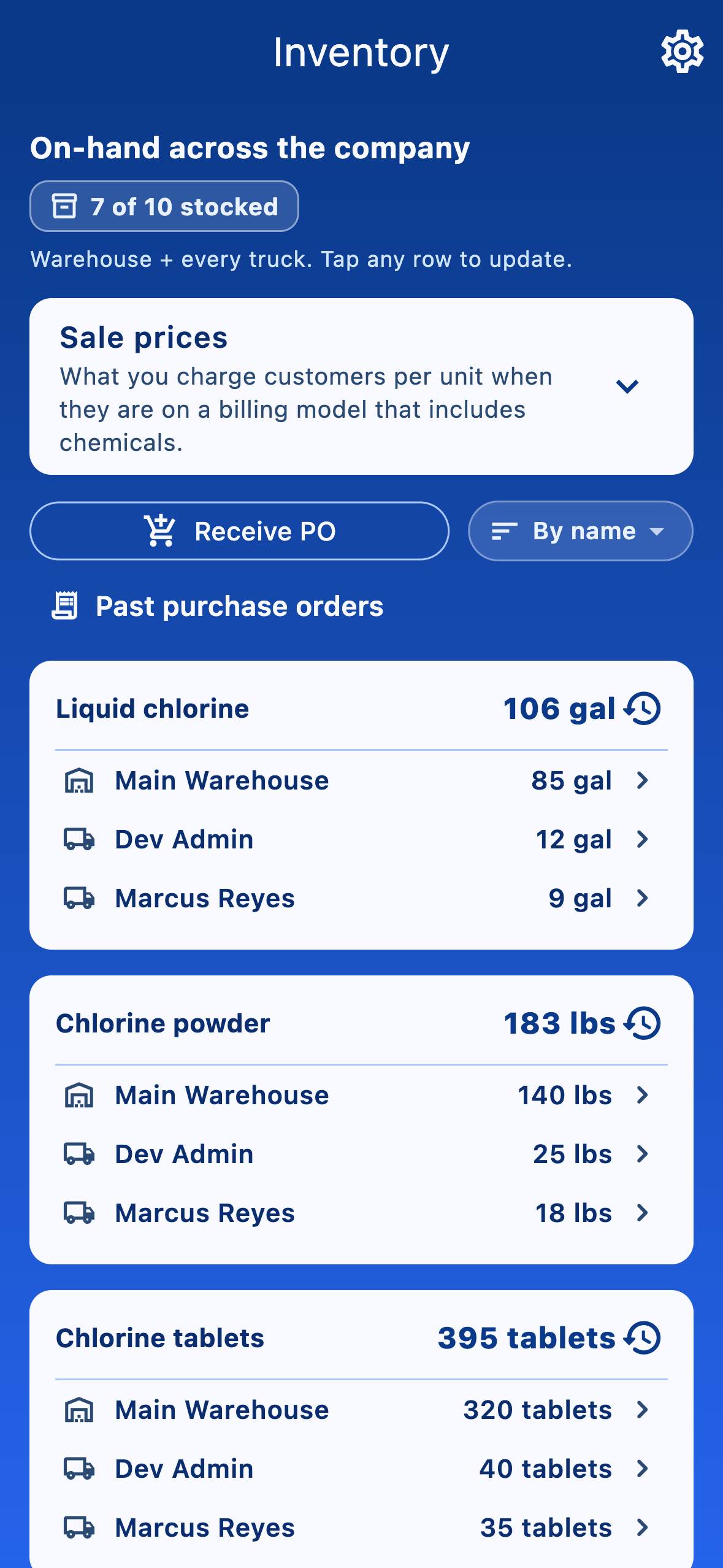
Tap your truck-inventory tile from Today's route (it sits above the stop list), or open it from the company Inventory tab. The list shows every chemical you've carried plus its current quantity.
Update a quantity
Tap any chemical row to open the Update dialog. Enter the new quantity, an optional note, and choose the stock source:
- From warehouse — you loaded the chemical at the shop. The warehouse stock decreases automatically.
- Truck-only — you bought it elsewhere; nothing is deducted from the warehouse.
Receive a bulk load (batch receive)
If you bought several items at a local supplier and need to add them all under one PO, use Add several truck lines from the truck-inventory or company-inventory screens. Enter the vendor and PO once, then add a line per chemical. Faster than tapping each row individually.
How visits reduce stock
Every chemical you log on Log visit subtracts the same amount from your truck when you save. If a quantity ever looks wrong, open View ledger on the chemical (in the company Inventory tab) — every change to your stock is logged with who did it and why.