
Start a visit
Tap Log visit from Today's route, the Stops list, or a pool's detail page. The form walks you through what you did at the stop in clear steps.
Tell it what you're doing here
The first step asks what are you doing here? Pick one of:
- A regular service visit (most common).
- A work-order-only stop (e.g. installing a heater, no routine chemistry expected).
- Both — a normal visit that also completes some work-order tasks.
The next step picks which bodies of water this visit covers, if the property has more than one pool or spa. These two steps are skipped automatically when you came in from a planned route stop that already has the answers.
Fill in chemistry readings
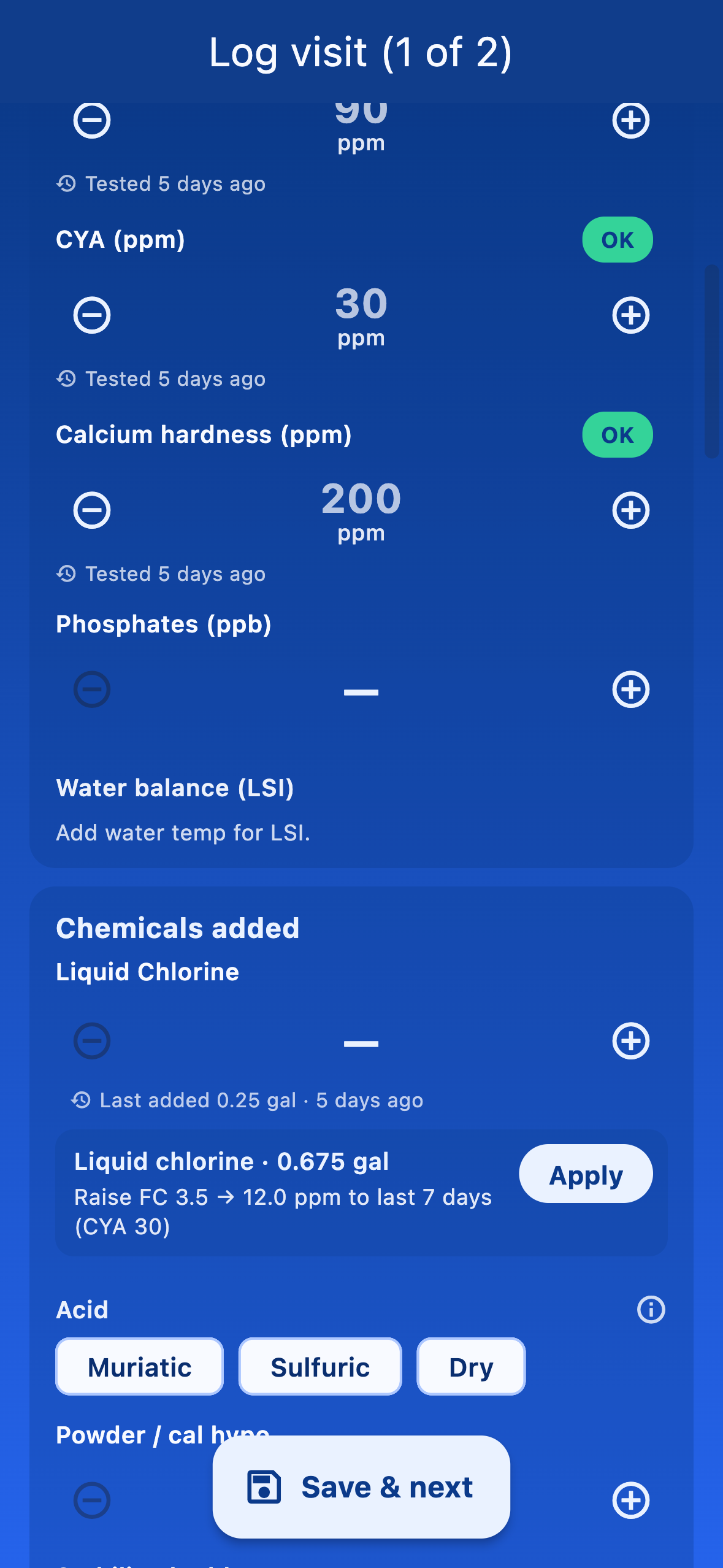
The readings section shows fields for every reading your admin marked required — chlorine, pH, alkalinity, calcium, cyanuric acid, salt, temperature, and anything else the company configured. Required fields have a small indicator, and you can't save the visit until they all have a value.
Log chemicals used
Add chemicals you actually added to the pool. Each line picks a product and a quantity. If chemical inventory is on for your company, the same line will subtract from your truck stock automatically when you save.
Tick the checklist
The checklist is whatever items your admin added in Default visit requirements (e.g. brush walls, empty skimmer basket). Every checklist item must be ticked before you can save.
Add photos and notes
Tap Add photos to attach proof-of-service shots, equipment issues, or anything the customer should see in the visit summary. The notes field is for free-text observations (an algae bloom you want flagged for next time, a broken ladder rail, etc.).
Save the visit
Three save buttons appear depending on where you came from:
- Save visit — closes the form and returns to wherever you came from.
- Save & next — saves and jumps to the next stop on your route. The fastest way to clear a route.
- Update visit — when you're editing an existing visit. Replaces the old data.
- Done — for work-order-only visits with no chemistry to log.
When the client has an email on file, you also get the option to email them a summary of the visit on save.