
How the planner is laid out
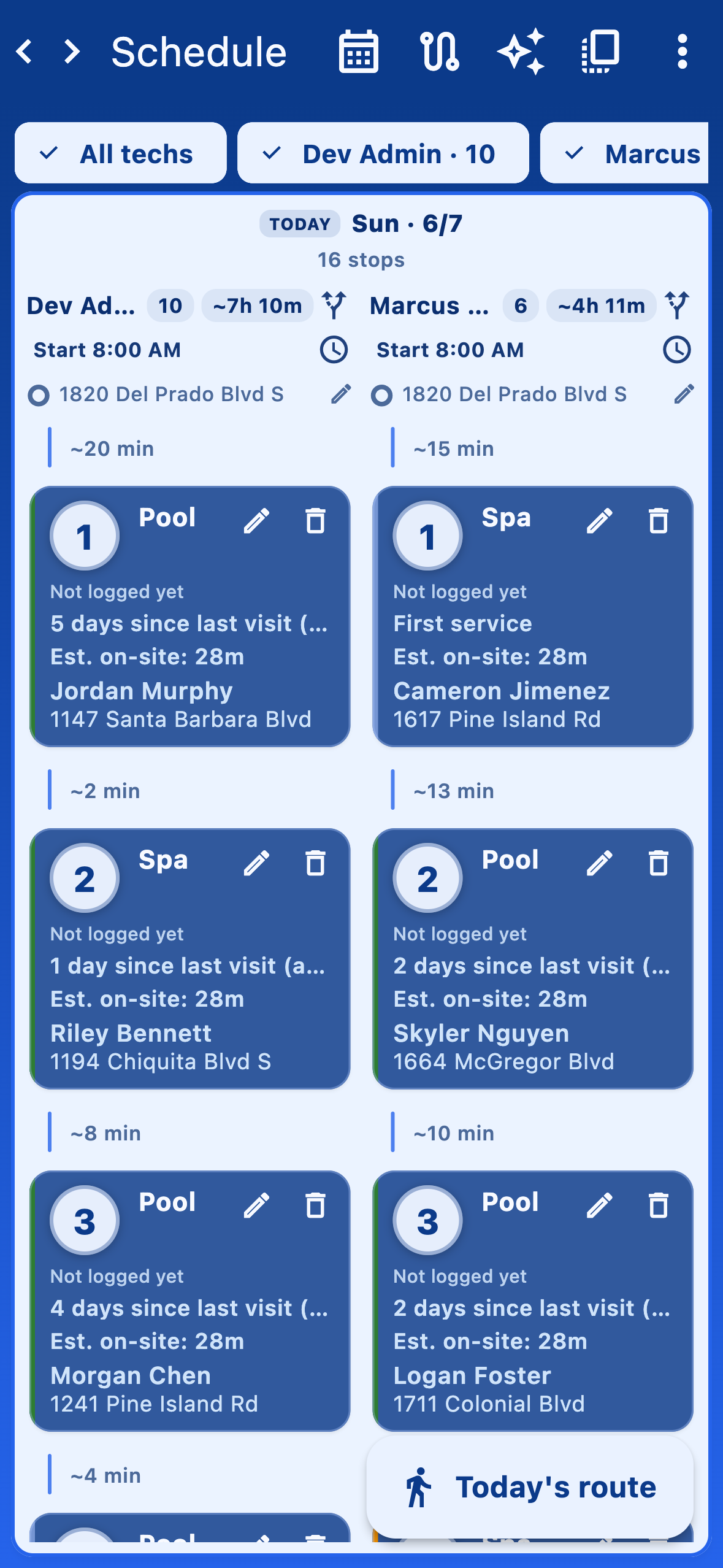
The Schedule tab is the week planner. As an admin you see a grid: each day is a column and each technician (and any admin who runs a route) has a lane. A stop card sits in the lane of the tech who's assigned it, on the day it's planned. Travel-time estimates appear between stops so you can see how tight a lane is.
- Pick day (calendar icon) and the previous/next-day arrows move the focused day. Full week opens the whole grid.
- Driving map opens the team route map for the day in view, with each tech's path in its own color.
- View options controls how the grid is displayed (e.g. rows-by-technician on wider screens).
Add a stop to the schedule
Tap Add stop to open Add planned stop. Search by street, customer, pool type, or city to find the Service address, pick the pools or spas at that address the visit covers, choose the Day and the Technician, then tap Add.
- Visit log requirements lets you override the required readings and checklist for this one stop (it otherwise inherits the company and per-pool defaults).
- Quotes / work orders attaches an approved quote to the stop so the tech sees it on the route and inside Log visit. You can also flag the stop as a Work-order-only visit when there's no routine chemistry expected.
Repeat a stop on its service interval
In Add planned stop, expand Recurrence and turn on Repeat this stop to drop the same stop onto the calendar at the pool's own service interval (weekly, biweekly, etc.). myPoolFlow shows how many stops it will create and the date of the last one before you save, so a season's worth of visits is one action instead of dozens.
Reorder and optimize a lane
Drag a stop card to reorder it within a lane, or move it to a different technician or day. Changes save immediately. To let myPoolFlow find the most efficient order for a single technician's day, use Optimize route on that lane and confirm Optimize — the new order is saved right away.
The first stop's clock icon sets the lane's first-leg start time, which the planner uses to estimate drive times and on-site windows for the rest of the day.
Smart plan a day
Tap Smart plan day to open a proposal for the day in view. Smart plan suggests stop order and timing from your recent visit patterns; review it and apply it in one step (you'll see Smart plan applied to the schedule when it's done). It only offers days that are today or in the future — it won't rewrite history.
Copy a week forward
Routes are mostly the same week to week, so Copy week to… clones the current week onto a future week you pick. If the target week already has stops, you choose how to handle the overlap:
- Merge — add the copied stops alongside what's already there.
- Replace all — clear the target week first, then copy.
Edit or remove a scheduled stop
Tap a stop card to open Edit scheduled stop where you can change the technician, the attached quotes, or the per-stop visit requirements, then Save. Remove takes the stop off the schedule (it doesn't delete the pool or its history). You can also set the lane's Morning start address and Evening end address for a day when a tech isn't starting or ending at their usual home address.